
How to mute GTA VI spoilers on Instagram and X
The words to mute and the exact steps in the Instagram app and on X. GTA VI is out, and the Instagram filter can take a day to start working, so do it before your next scroll.
PixelMorrowUpdated

GTA VI came out on November 19. The ending is on Instagram before most people have finished the download: in a caption, in a comment, in a stranger's Reel that plays while your thumb is still moving.
You cannot stop people posting. You can tell Instagram which words you do not want to see, and it takes about three minutes.
Do it today. Instagram says a new word can take up to 24 hours to start working, so the sooner it is in, the sooner it works.
Using X instead? The steps are further down.
The list
We update this page as we play. Get the changes by email.
111 words and phrases, ready to paste
One tap copies all five groups with the commas Instagram asks for.
Show it as plain text
spoiler, spoilers, gta 6 spoiler, gta 6 spoilers, gta vi spoilers, gta6 spoilers, gta 6 ending, gta vi ending, gta6 ending, gta 6 endings, ending explained, all endings, secret ending, final cutscene, post credits, gta 6 story explained, gta 6 full story, gta 6 plot twist, gta 6 cutscenes, gta 6 full game, gta6spoilers, gta6spoiler, gtavispoilers, gta6ending, gtaviending, gta6story, jason dies, jason death, jason killed, jason betrays, jason ending, lucia dies, lucia death, lucia killed, lucia betrays, lucia ending, cal dies, cal death, boobie dies, boobie death, drequan dies, drequan death, dre'quan dies, dre'quan death, raul dies, raul death, brian dies, brian death, real dimez dies, real dimez death, who dies, who survives, death scene, dies in gta 6, killed in gta 6, gta 6 betrayal, rip jason, rip lucia, final mission, last mission, gta 6 final mission, gta 6 last mission, gta 6 all missions, gta 6 mission list, gta 6 story missions, gta 6 walkthrough, gta 6 playthrough, gta 6 final heist, last heist, final boss, gta 6 boss fight, gta6finalmission, gta6walkthrough, gta6missions, gta 6 full map, gta 6 map revealed, gta 6 easter egg, gta 6 easter eggs, gta 6 secrets, gta 6 secret location, gta 6 hidden location, gta 6 secret mission, gta 6 secret character, gta 6 secret car, gta 6 secret weapon, gta 6 mystery, gta 6 cameo, gta 6 cameos, gta 6 returning characters, gta6eastereggs, gta6easteregg, gta6secrets, gta6map, gta 6 leak, gta 6 leaks, gta 6 leaked, gta vi leak, gta vi leaks, leaked gameplay, leaked ending, leaked cutscene, leaked footage, early copy, early gameplay, street date, datamine, datamined, gta6leak, gta6leaks, gta6leaked, gtavileaks
Story and ending
The broad ones are here on purpose. Spoiler and ending explained will also hide posts about other games and shows.
Character names and fates
Every character Rockstar has named gets the same words. We wrote this before launch and have no idea who makes it to the credits.
Missions
Mission names are the easiest spoiler to post by accident. These catch the usual captions around them.
Map and secrets
For anyone who wants to find things on their own. Skip this group if you would rather be told where to look.
Leak terms
Leaked cutscenes and story details still get posted with these words, now the game is out.
Nothing in it is a hint. The list was written before launch from two ingredients: the character names Rockstar has already published, and plain words such as ending, dies and final mission. Every character gets the same words, and nobody at PixelMorrow has seen the story.
Step 1: mute the words in suggested posts
This is the setting that does most of the work. It covers the posts Instagram chooses for you, which is where a spoiler from a stranger comes from.
In the Instagram app on iPhone or Android:
- Go to your profile and tap the menu in the top right.
- Scroll to What you see and tap Content preferences.
- Tap Specific words and phrases.
- Paste the list into the box and tap Add. The entries are already separated by commas, which is how Instagram asks for them.
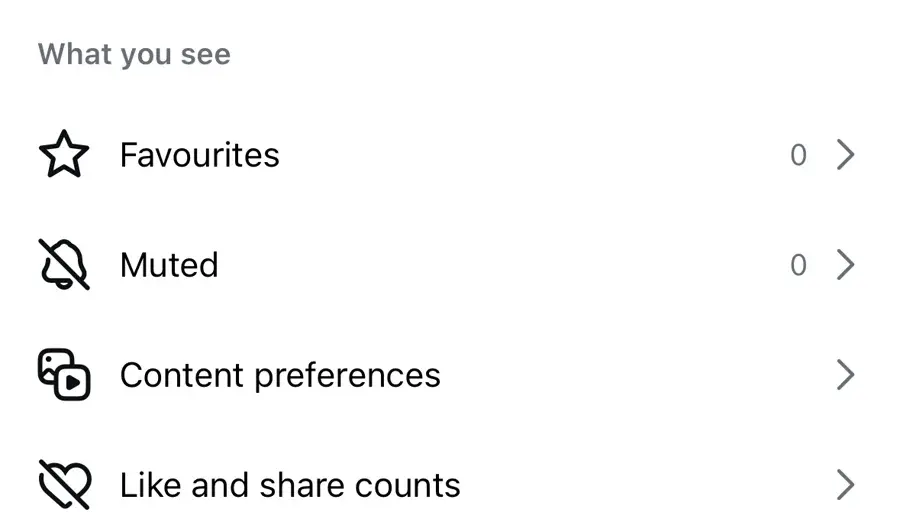
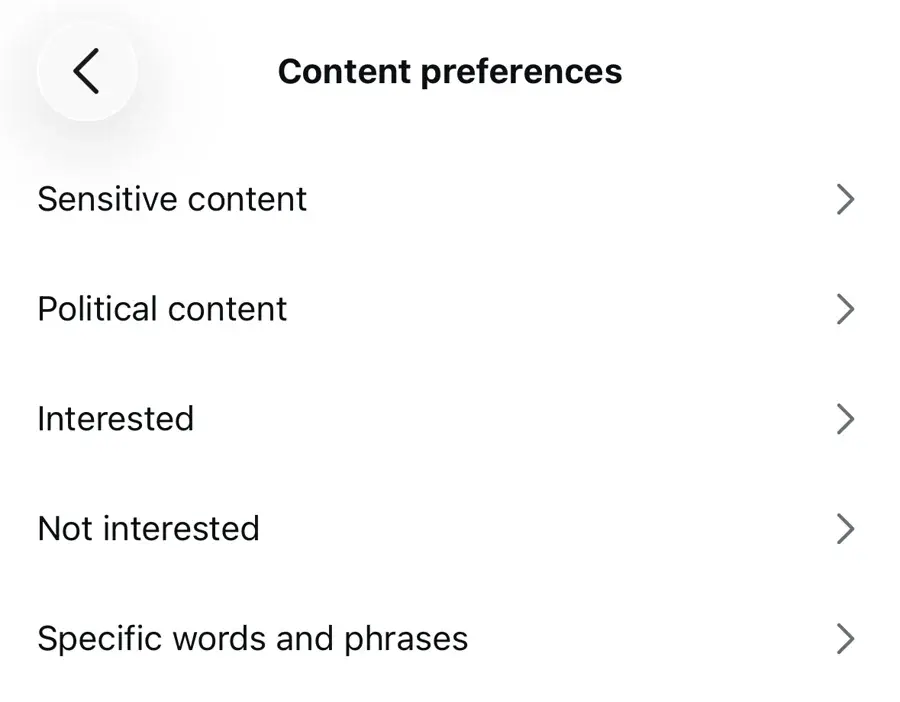
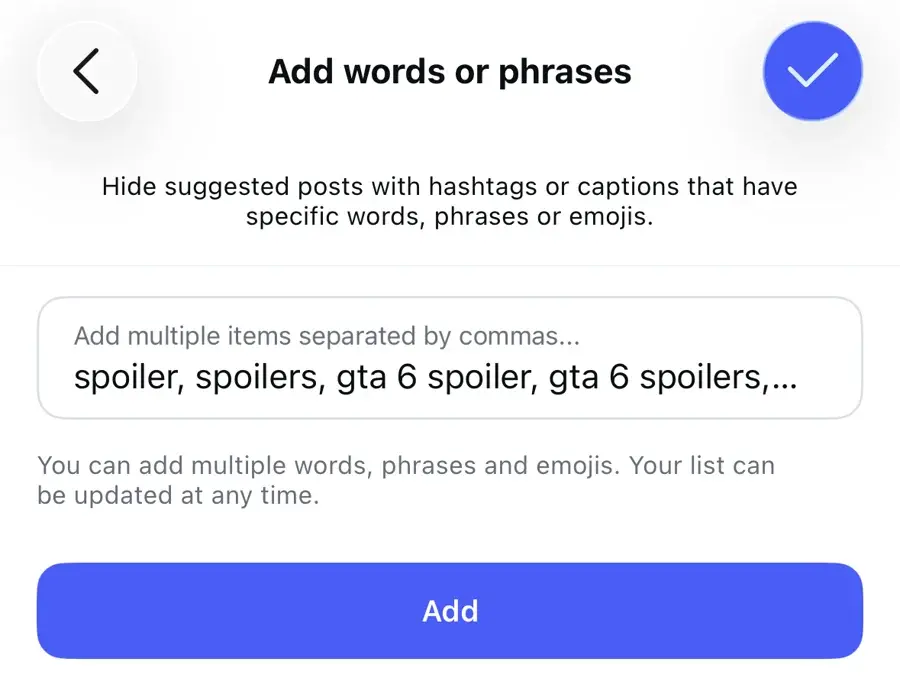
There is a second way in. On any suggested post, tap the options icon, then Not interested, then Don't suggest posts with certain words. It adds to the same list.
The whole list goes in with one paste. We tested all 111 entries in both boxes and Instagram took them. If you only want part of it, each group above has its own copy button.
The screens here are from the iPhone app in November 2026, and Instagram gives the same labels for Android. Instagram moves its menus now and then. If one reads differently in your app, search Settings for the bold words above.
Step 2: hide the words in your own comments and message requests
Hidden words is a separate setting with a separate job. It hides comments on posts you share when they contain a word from your list, and it says it catches similar misspellings too. Message requests with those words go to a hidden requests folder. The person who wrote them is not told.
- Go to your profile and tap the menu in the top right.
- Under How others can interact with you, tap Hidden words.
- Paste the same list into the box and tap Add.
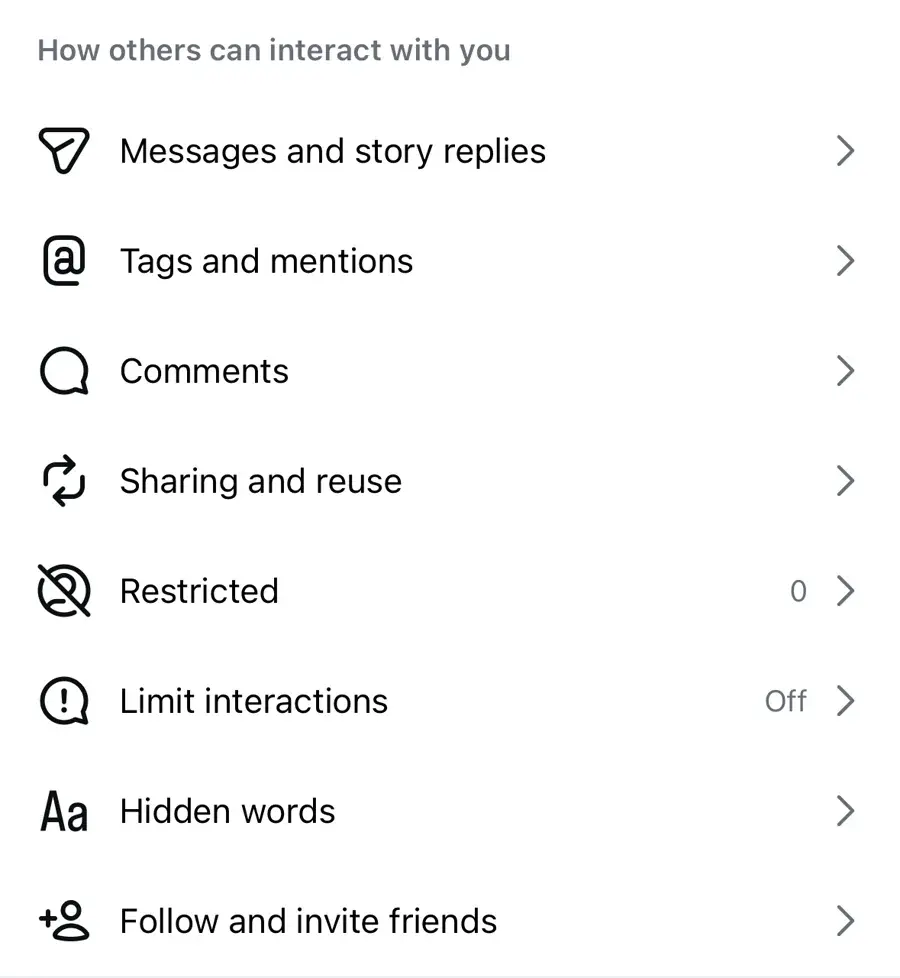
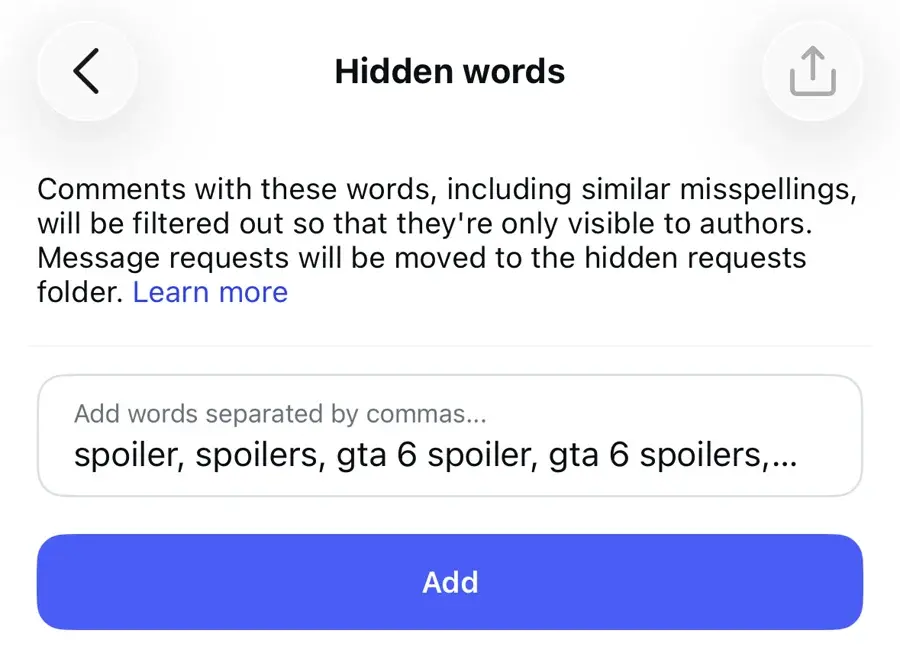
Worth doing if you post about the game yourself. It stops a stranger leaving the ending under your Reel for all of your followers to read.
What muting does not cover
Quite a lot, and it is better to know than to find out mid-scroll. These limits come from Instagram's own help pages.
- Accounts you follow. The suggested-posts filter leaves them alone, even when a caption uses a word from your list. If an account you follow starts posting story details, mute it for a few weeks. PixelMorrow's own posts carry no story spoilers.
- Comments under other people's posts. Hidden words only works on posts you share. Everywhere else the comments are unfiltered, so stay out of them on GTA posts until you have finished.
- Anything that is not a caption or a hashtag. Those are the two things the filter reads. Text inside a video, a thumbnail and a voiceover all get through.
- Hashtags that are spelled differently. A hashtag has to match an entry exactly. That is why the list carries tags like gta6ending as well as the spaced-out phrase.
- Friends. Hidden words filters message requests. Someone you already chat with can still send you anything. For the group chat and the people in your house, the GTA VI Contract has a spoiler clause, and it is free.
- The browser. Instagram says the suggested-posts list does not apply on instagram.com. It works in the app.
One more limit belongs to the list itself. Hidden words says it catches similar misspellings, but the suggested-posts list makes no such promise, and no list written before launch can know every name that will matter after it. Treat this as a seat belt.
How tight to make it
The main list is built to keep GTA VI in your feed. Screenshots, clips and jokes still come through. Talk about the ending, deaths, mission names and leaks does not.
A few entries are broad on purpose, such as spoiler and ending explained. They will also hide posts about other games and shows, which most people can live with for a month.
If you want nothing at all until the credits, add this on top. It includes the name of the game.
Blackout add-on
Adds the name of the game itself. Paste it on top of the main list and Instagram stops suggesting nearly every GTA VI post, harmless ones included.
Put the blackout in Specific words and phrases only. In Hidden words it would hide ordinary comments about the game on your own posts.
Accounts you follow still come through with the blackout on, so you keep the ones you chose yourself.
Taking it off again
Go back to the same two screens. In Hidden words, tap Delete next to an entry. The suggested-posts list is edited in Specific words and phrases. Clear the broad entries first, since those are the ones hiding posts that have nothing to do with the game.
Mute GTA VI spoilers on X
X works differently. It has no paste and no bulk import, so you add each word on its own. That is slower than Instagram, which is why this list is shorter: 18 words, about five minutes.
Start with these. They all come from the main list above.
18 words to start with
Tap a word to copy it, then paste it into X.
Here is the path on a phone, in the X app:
- Tap your profile photo, then Settings and privacy.
- Tap Privacy and safety.
- Tap Mute and block.
- Tap Muted words.
- Tap Add term.
- Type one word or phrase and tap Next.
- Keep Home timeline and Notifications switched on. Under who it applies to, choose From anyone. The app starts on "From people you don't follow", which lets through posts from accounts you do follow. Tap Next.
- Pick how long it lasts. Forever is the default. We suggest 30 days, which covers launch month and then lets the list go. Tap Save.
- Repeat from step 5 for each word.
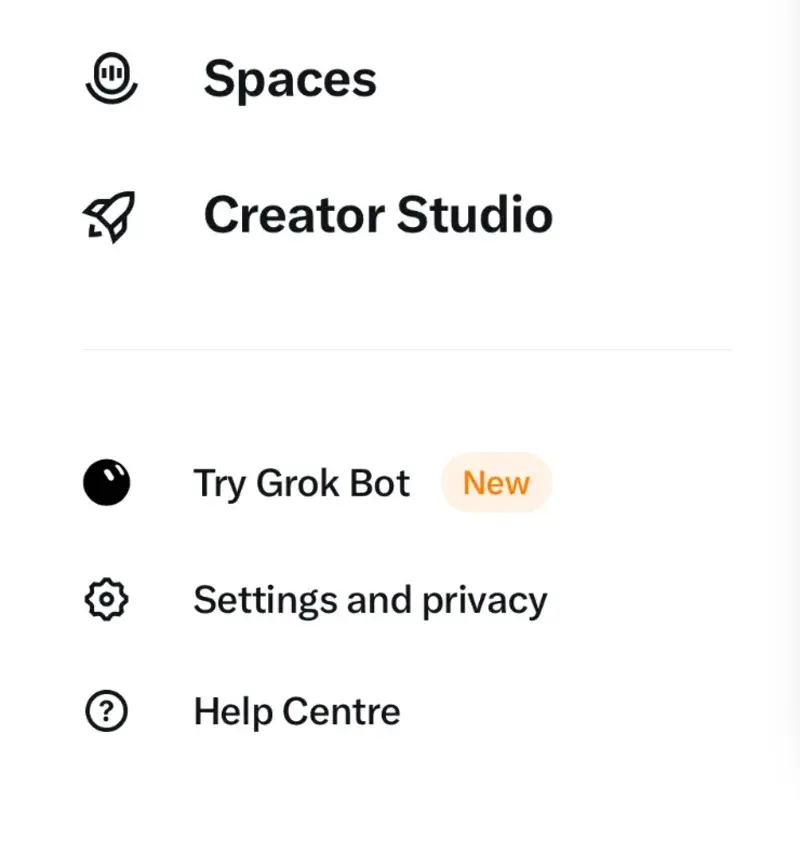
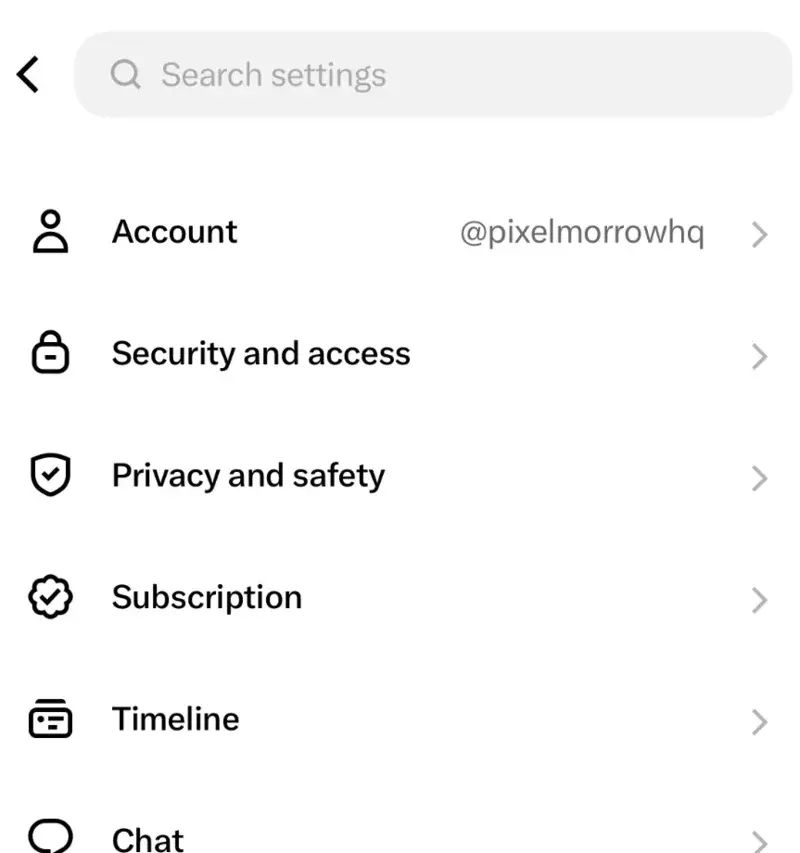
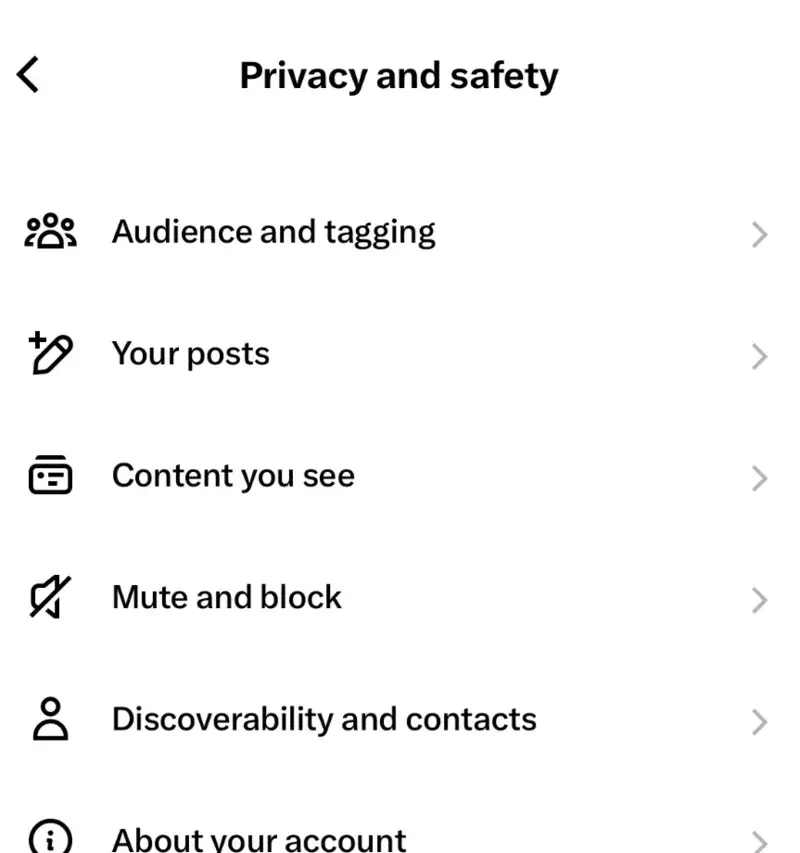
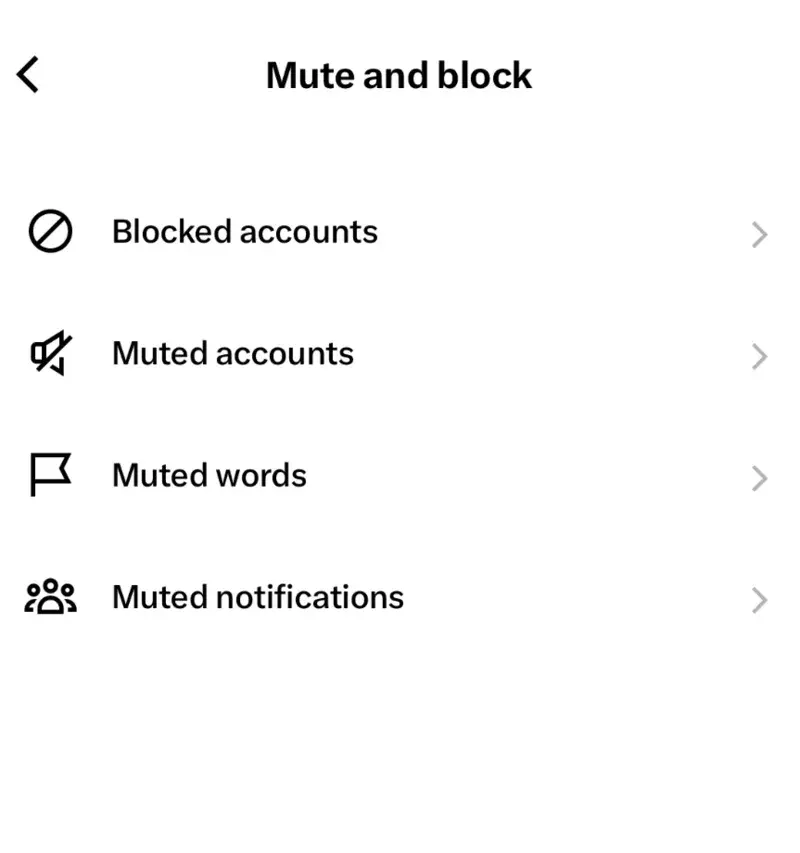
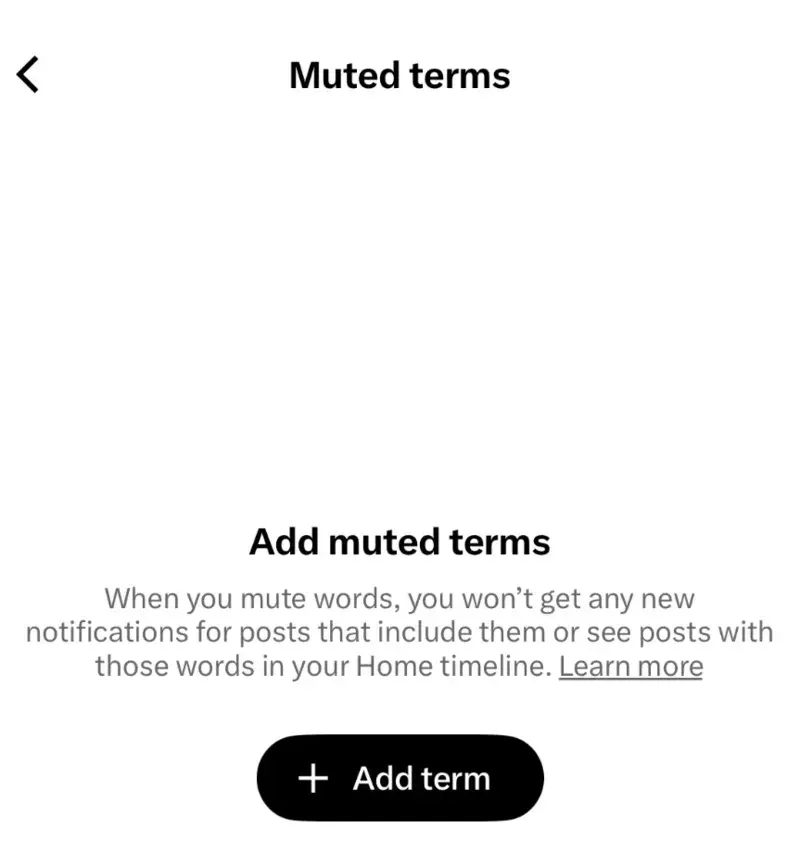
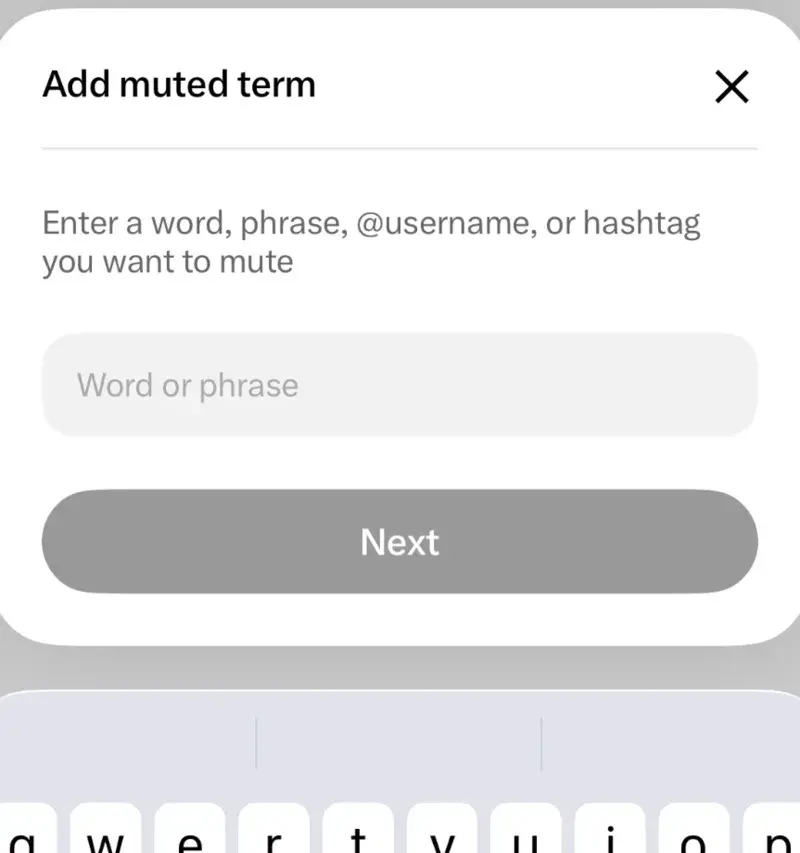
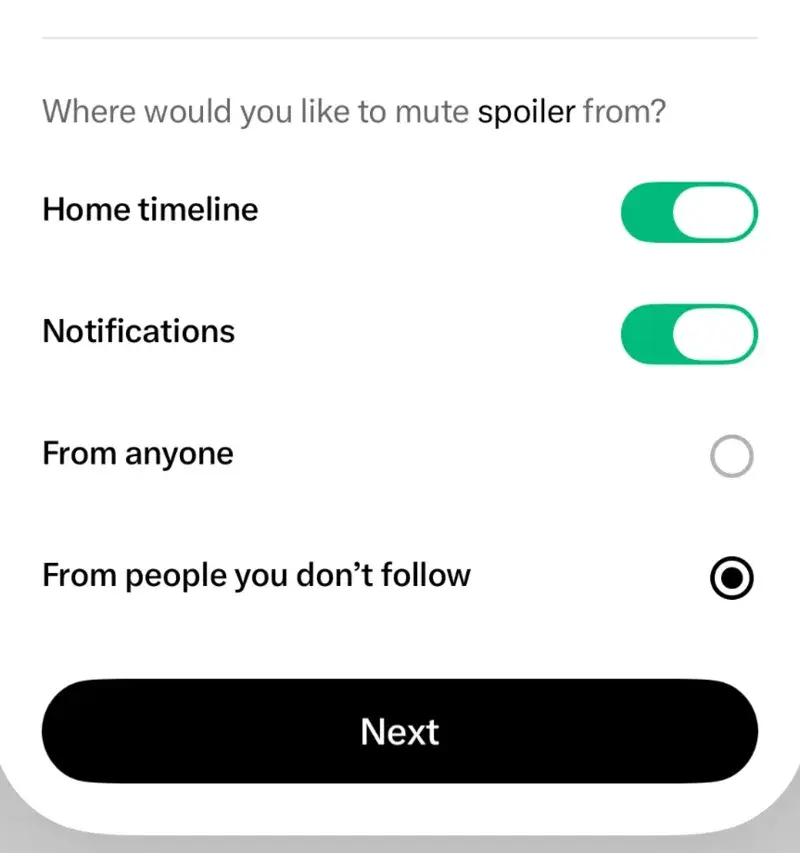
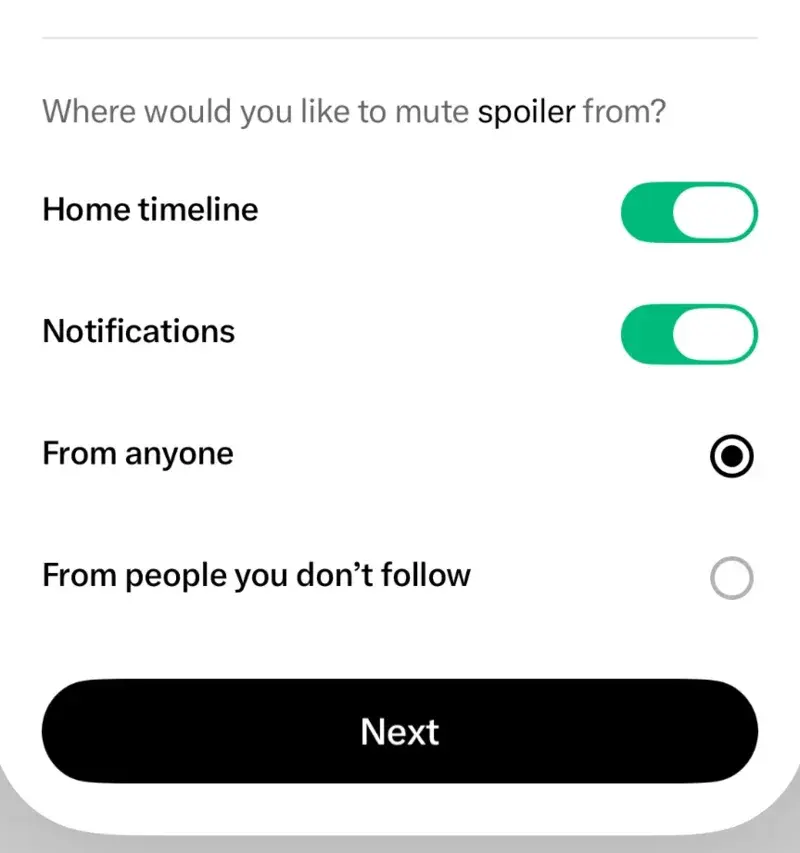
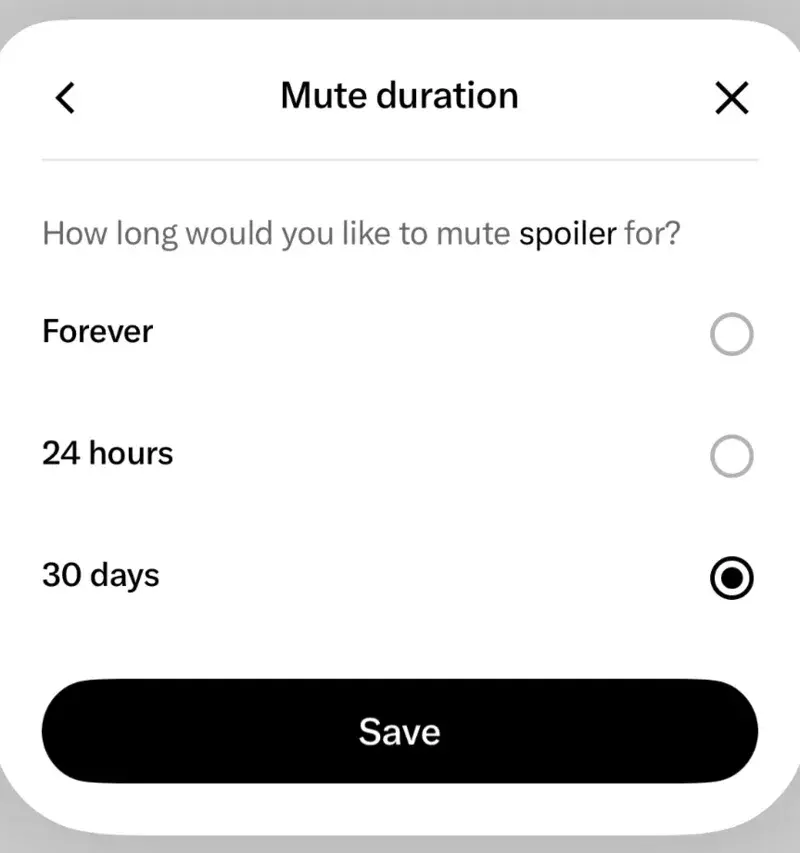
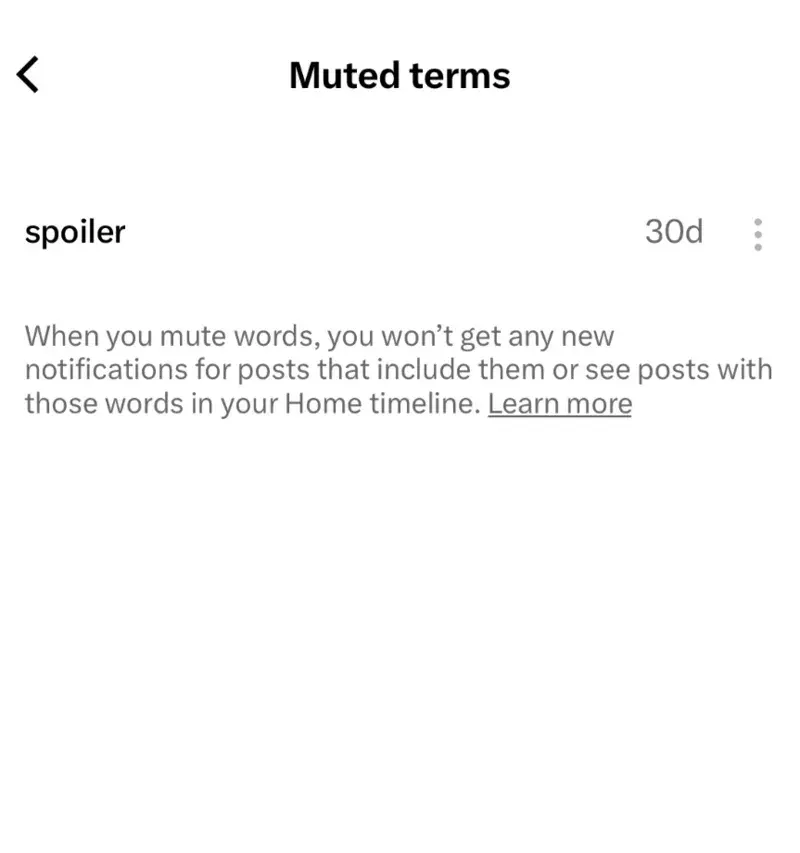
On a computer the path is the same: Settings, Privacy and safety, Mute and block, Muted words.
What X says about how it works: capital letters do not matter, and muting a word also mutes the hashtag for it. That means you do not need a separate entry for a hashtag version of a word you have already added.
What muting on X does not cover
- Search. Muted posts still show up when you search.
- Alerts you turned on. If you turned on alerts for an account you follow, its posts still arrive.
- Other spellings. gta 6 and gta vi are two different entries, and X does not say whether one catches the other. Add the spelling you see.
- Pictures and video. X does not say whether muting looks inside them, so do not count on it.
The word spoiler will also hide posts about other shows and games. For a month, most people can live with that.
Checked on 2026-11-17 against X's Help Center and the X app on a phone. X changes its menu labels now and then. If one reads differently, search the Settings screen for the bold words above.
Get the next guide by email
One email when PixelMorrow publishes something like this. Nothing in between.
We store your address to send the newsletter, and nothing else. See our privacy policy, or unsubscribe at any time.