
How to turn off the GTA 6 narrator (Screen Narration) on PS5
GTA 6 reads its menus aloud when Screen Narration is on. There are two places to switch it off: the very first screen, and the game's Settings.
PixelMorrowUpdated
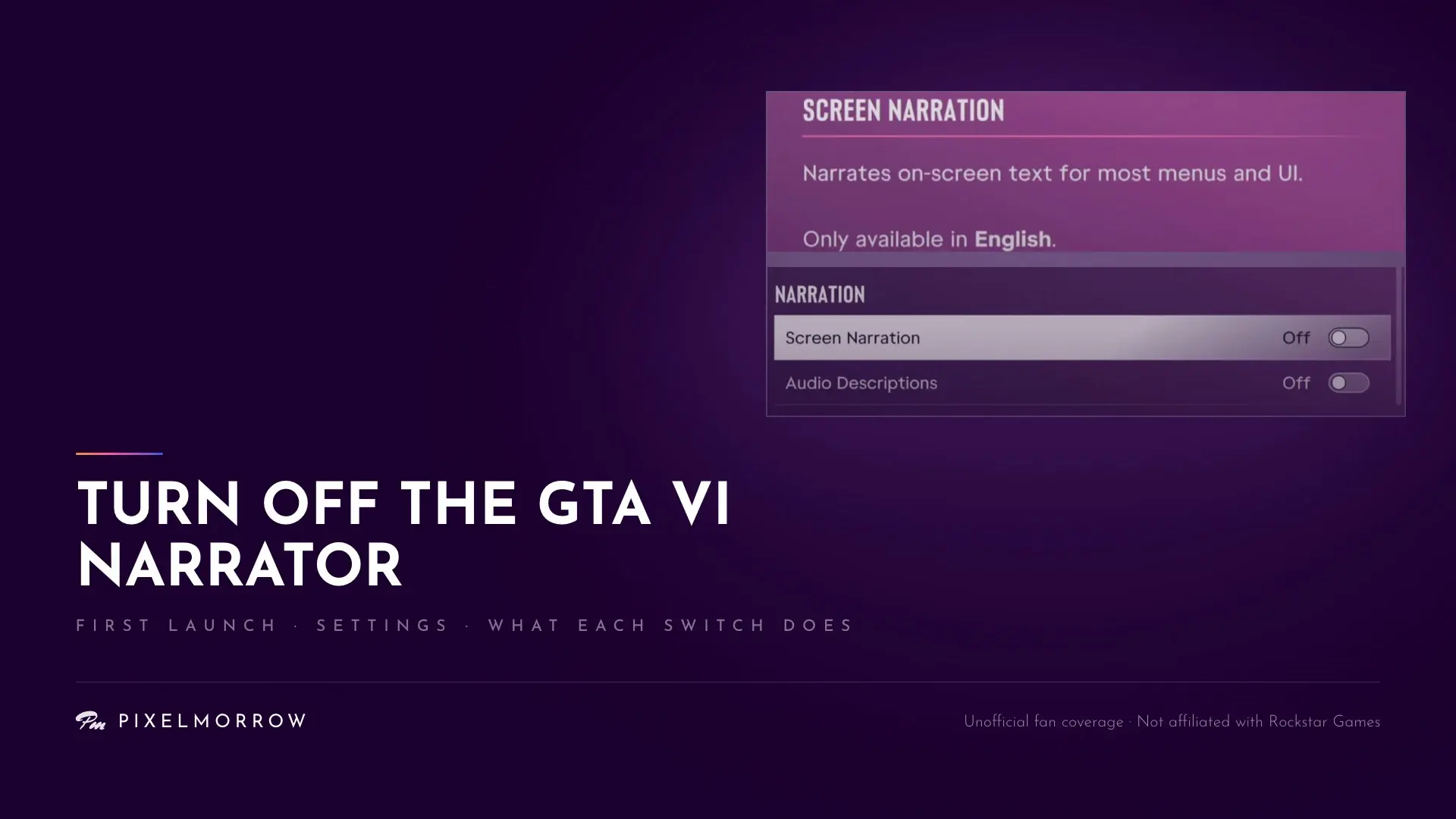
If GTA 6 is reading every menu out loud, Screen Narration is on. You can switch it off in two places: on the very first screen, or later in the game's Settings. Either way the voice stops the moment the switch says Off.
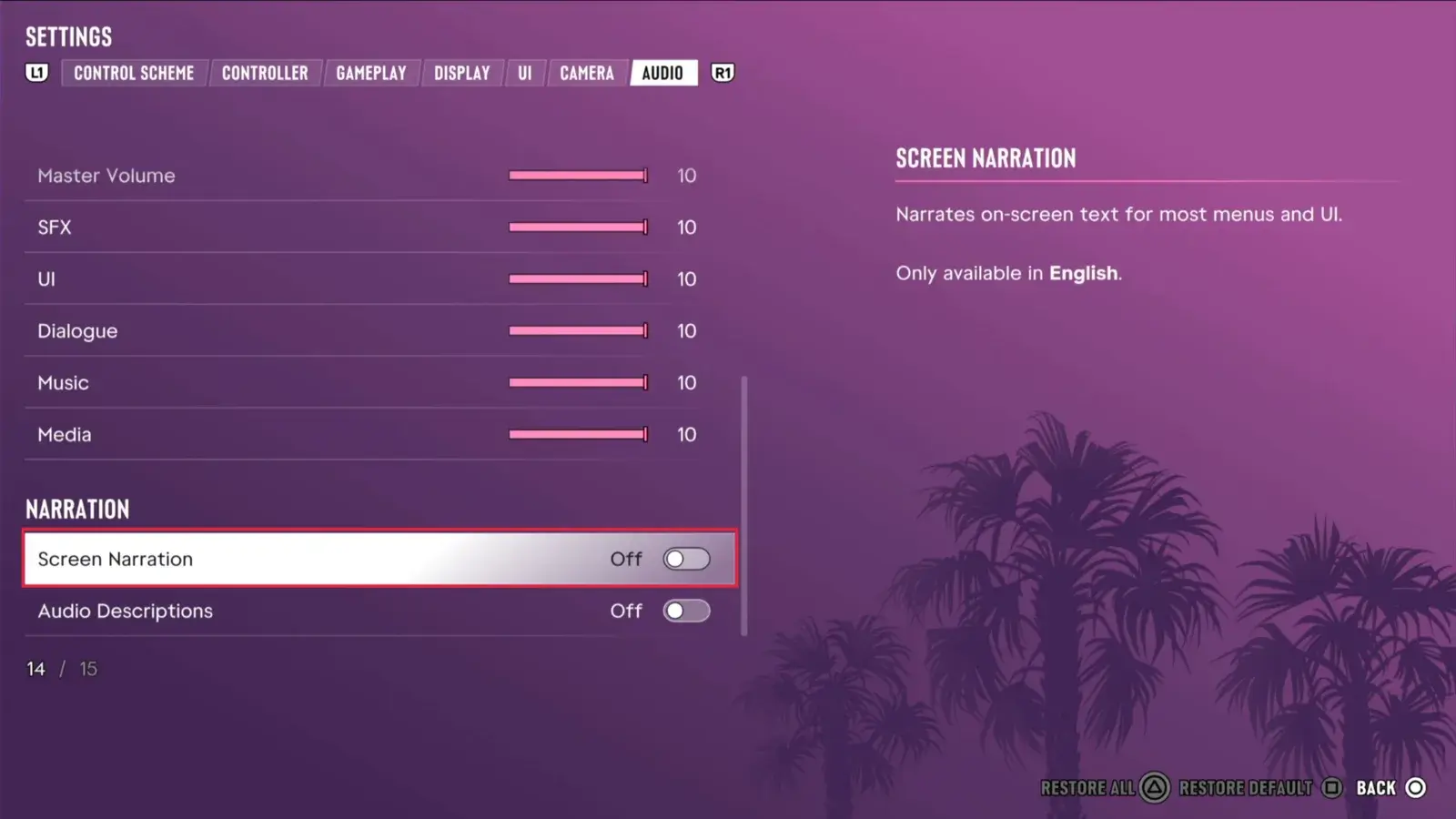
Quick fix: open Settings, go to the Audio tab and scroll down to Narration. Set Screen Narration to Off.
We update this page as we play. Get the changes by email.
Option 1: on the first screen
The first time you start the game you get an almost black screen with one line in the bottom right corner: Screen Narration, a Square button and Continue.


It starts Off, but the game still reads that one line aloud, which makes it sound like narration is already on. Square flips it. Press it once and it says (ON), and from then on the game reads the prompts and the screen text to you.
So check the word in brackets before you press Continue. If it says (ON), press Square again.
Option 2: in Settings
Already past the first screen? Do it in the game's Settings.
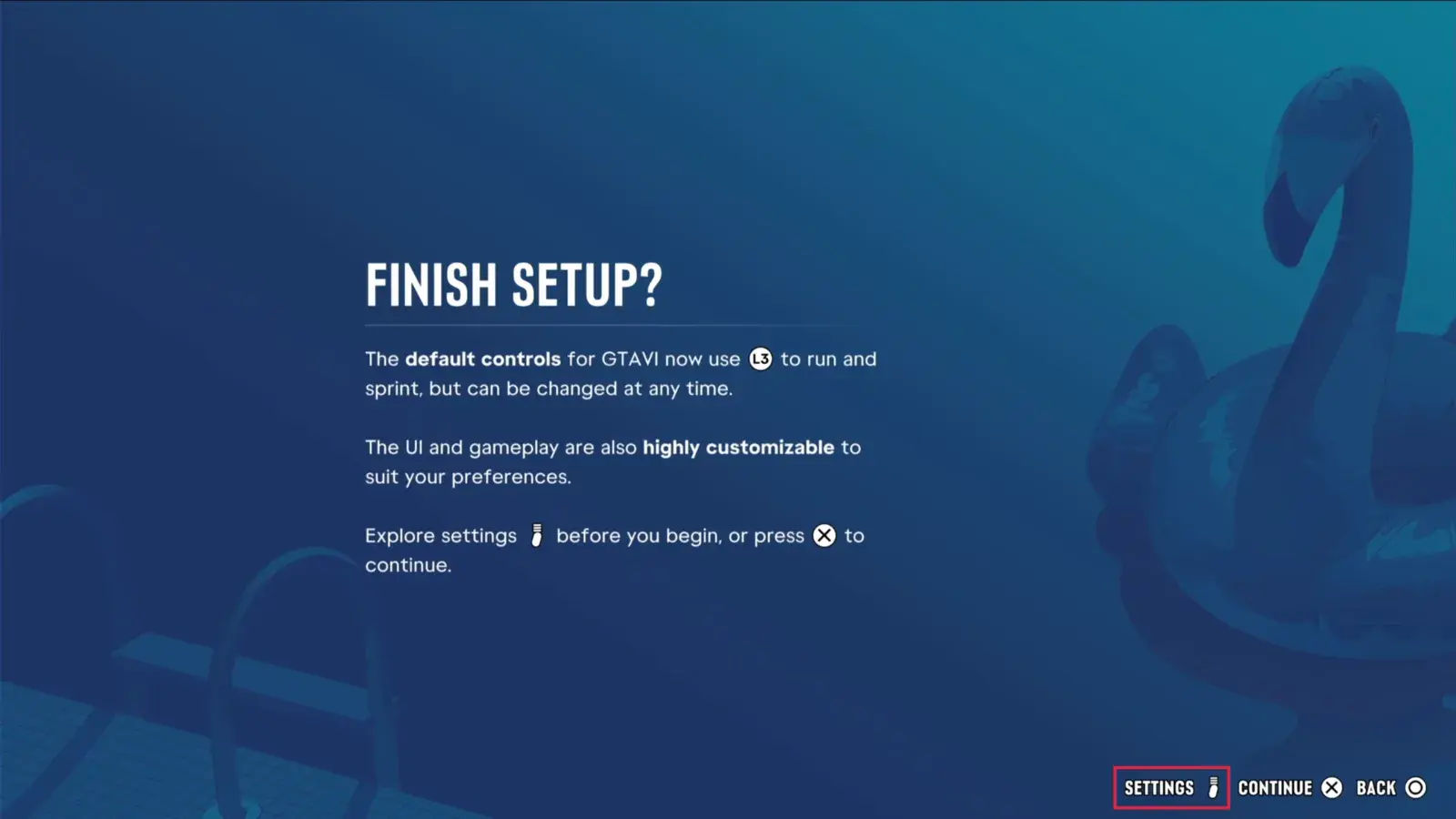
- On the Finish setup? screen, press the Settings button in the bottom right corner.
- Open the Audio tab.
- Scroll to the bottom, to the Narration section.
- Set Screen Narration to Off.
The switch under it: Audio Descriptions
Right below Screen Narration is Audio Descriptions. It's a different thing. The game says it "provides audio descriptions for cutscenes", so it's a voice describing what happens on screen during story scenes. If that's the voice you're hearing, this is the one to switch off.
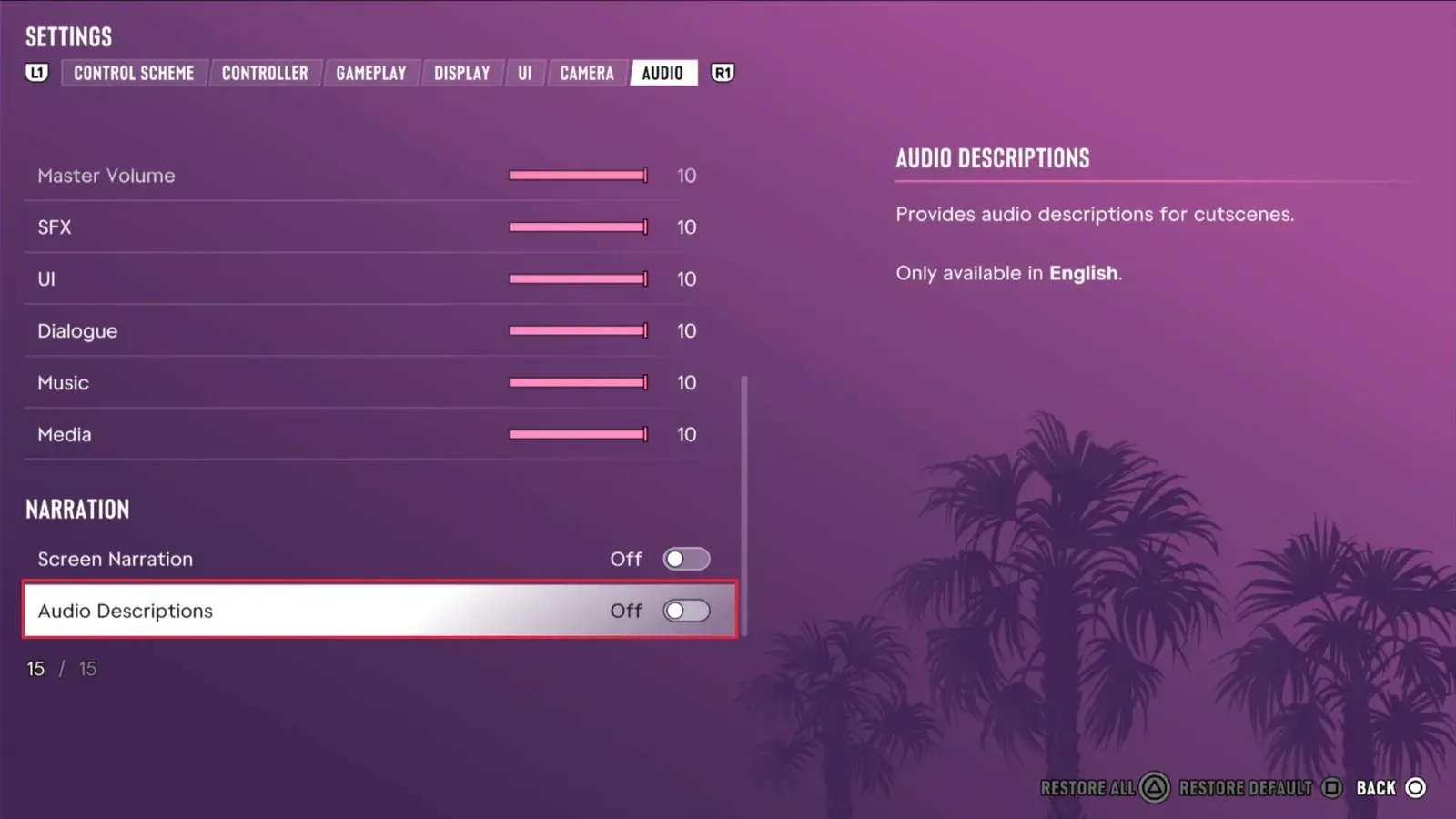
Both switches are Off by default, and both work in English only.
How you know it worked
The switch reads Off and the voice stops straight away. No restart needed.
Checked on our own PS5 on 19 November 2026, the first time we started the game. Menus can change in updates. If yours look different, tell us and we'll check.
PixelMorrow is not affiliated with Rockstar Games, Take-Two or Sony Interactive Entertainment.
Get the next guide by email
One email when PixelMorrow publishes something like this. Nothing in between.
We store your address to send the newsletter, and nothing else. See our privacy policy, or unsubscribe at any time.